The best app blockers for work, compared honestly
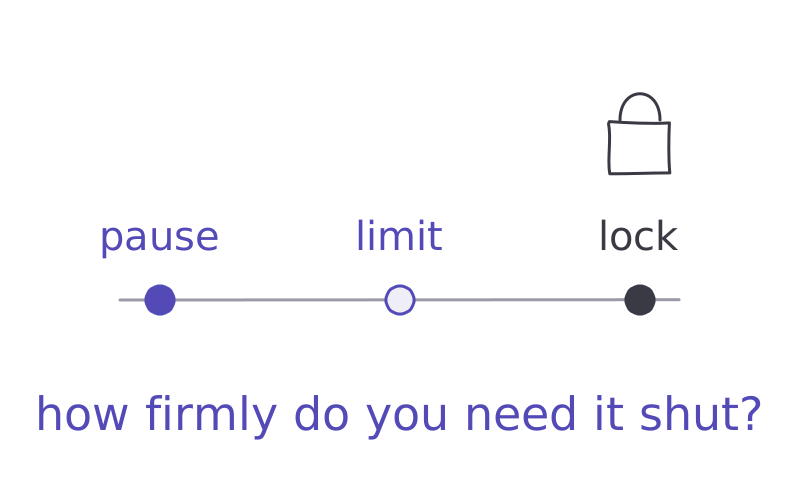
A blocker closes a door. Pick one by how firmly you need it shut.
20 October 2026 · 5 min read
You blocked Instagram on Monday. By Wednesday you’d found three new ways to waste the same twenty minutes.
Quick answer: for a laptop, Freedom or Cold Turkey if you need a block you can’t undo, FocusMe if you want schedules on every device. For your phone, start with the free tools it already has, or one sec for a gentle pause.
A hard lock or a gentle pause?
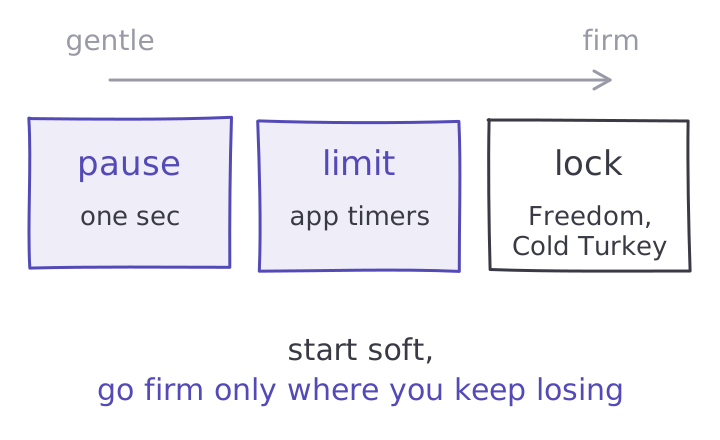
Blockers come in two strengths. A hard lock shuts the app or site until the timer ends, and you can't talk your way out. A gentle pause makes you wait a few seconds and asks if you're sure.
Both can work. A 2023 review of 13 apps built to cut phone use found results from weak to strong, with grayscale mode, app limits and a mix of tools doing best.
The gentle kind does better than you'd expect. In a study of one sec, the pause app, 280 people opened their chosen apps 57% less after six weeks. A follow-up experiment found the strongest part wasn't the wait. It was simply being offered the choice to stop.
So start with the softest tool that works for you. Go harder only for the sites that keep winning.
For your laptop
Freedom. Blocks apps, websites or the whole internet, and syncs across Mac, Windows, iPhone, Android and Chromebook. Locked Mode stops you ending a session early. Free to try for 7 days, then a monthly, yearly or one-off price. Best for: blocking on every device at once.
Cold Turkey Blocker. Windows and Mac. The free version blocks websites on a timer. Pro, a one-time payment, adds app blocking, schedules and locks that are very hard to undo. Best for: people who will try every trick to get around a block.
FocusMe. Windows, Mac, Linux, Android and iPhone. Blocks apps and websites on schedules you set, and Enforced Mode makes a plan hard to switch off until it ends. 14-day free trial. Best for: a fixed weekly routine, like no news sites before noon.
For your phone
What you already have. On Android, Digital Wellbeing lets you set daily app timers and turn on Focus mode, which pauses chosen apps and their notifications. On iPhone, Screen Time lets you schedule downtime and set time allowances for apps. Free and already installed.
one sec. Adds a short pause before a chosen app or website opens, and asks if you still want to. iPhone, Android, and a browser extension for Windows, Mac and Linux. Best for: breaking the automatic reach without banning anything.
Opal. Focus rules that block apps on a schedule, a focus timer, and a Hard Mode you can't switch off mid-session. iPhone, Android and Mac. Best for: a firmer lock on your phone.
What no blocker can do
A blocker removes the exit. It doesn't remove the reason you wanted to leave.
When London School of Economics researchers filmed everyday phone use, 89% of pickups were started by the person, not the phone. Block one app and that urge goes looking for another: email, the news, a snack. At work you often can't block email or Slack at all, because you need them.
That's the half CatchScroll is built for. When the pull comes, you tap what you're feeling, like bored, anxious or stuck, and take a two-minute reset made for it. It works alongside any blocker here. The longer version is in do app blockers work?
Pick yours in five minutes
Write down the three apps or sites that cost you the most time last week. Your phone's screen time report will tell you.
If it's one or two sites on your laptop, start with Cold Turkey's free version. If it's spread across your laptop and phone, try Freedom. If it's your phone and you mostly open apps on autopilot, turn on one sec or your phone's own app timers.
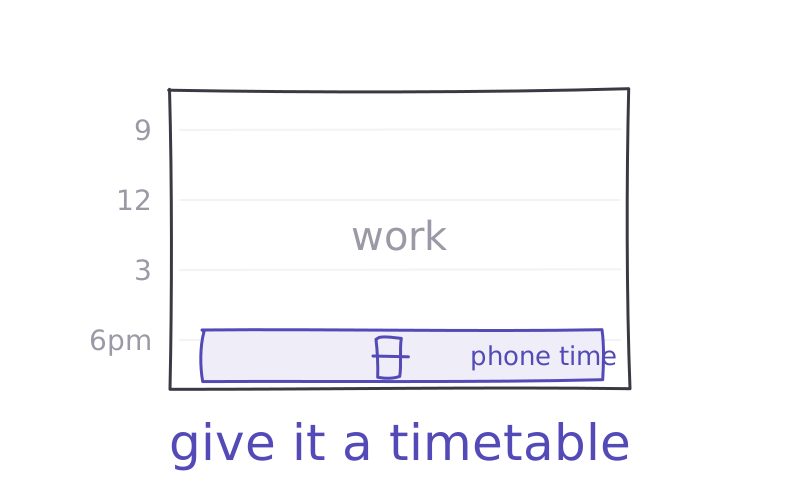
Block only during your focus hours, not all day, so the block feels like help and not a punishment. After a week, check whether the urge moved somewhere else. If it did, the problem isn't the app.
More in how to reduce screen time and the best focus apps.
So, which door do you walk through most often?
Try it
A blocker shuts the door. CatchScroll helps with the reason you wanted to leave: a two-minute reset for the feeling behind the urge, plus a focus timer that is free for good. Try the resets free for 7 days.
Try a reset free →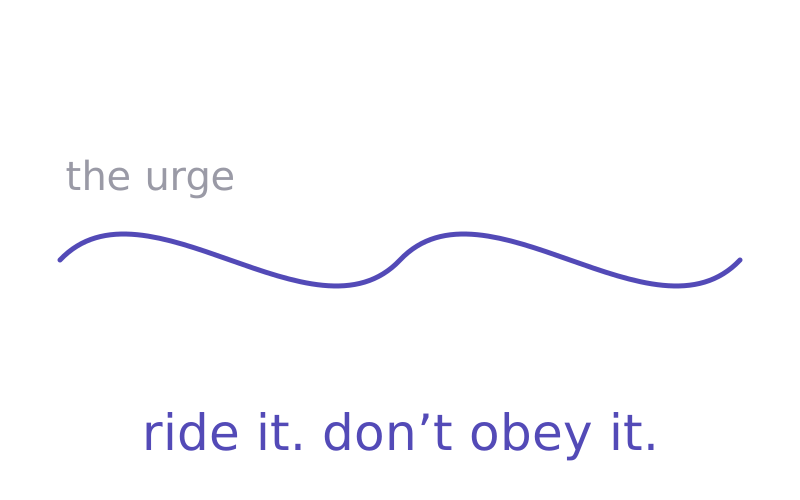
Sources
- 01Rahmillah, F. I. et al. — Evaluating the effectiveness of apps designed to reduce mobile phone use: 13 apps, 19 studies. Journal of Medical Internet Research, 2023 ↗
- 02Grüning, D. J., Riedel, F. & Lorenz-Spreen, P. — Directing smartphone use through the self-nudge app one sec. 280 people over 6 weeks: 36% of attempts closed after the pause; app openings down 57%. One author created the app. PNAS 120(8), e2213114120, 2023 ↗
- 03Freedom — blocks apps, websites or the whole internet on Mac, Windows, iOS, Android and Chromebook; Locked Mode on Premium; 7-day free trial. freedom.to/pricing ↗
- 04Cold Turkey Blocker — free version blocks websites; Pro (pay once) adds app blocking, schedules and locks. Windows and macOS. getcoldturkey.com/pricing ↗
- 05FocusMe — app and website blocker with schedules and Enforced Mode; Windows, macOS, Linux, Android and iOS; 14-day free trial. focusme.com ↗
- 06Google — Manage how you spend time on your Android phone with Digital Wellbeing: dashboard (screen time, times opened, notifications), app timers, Focus mode, Bedtime mode. Android Help ↗
- 07Apple — Set Screen Time schedules and time allowances on iPhone. iPhone User Guide ↗
- 08one sec — adds a pause before chosen apps and websites open; iOS, Android and a browser extension for Windows, macOS and Linux. one-sec.app ↗
- 09Opal — screen time app with focus rules, a focus timer and Hard Mode; iPhone, Android and Mac. opalapp.com ↗
- 10Heitmayer, M. & Lahlou, S. — Smartphone use is initiated by the user in 89% of interactions. Computers in Human Behavior, 2021 ↗